How to Copy a YouTube Transcript: 7 Easy Methods
New to YouTube? Here are 4 simple ways to convert a YouTube transcript — including a free online tool that exports SRT, VTT, and TXT in seconds.
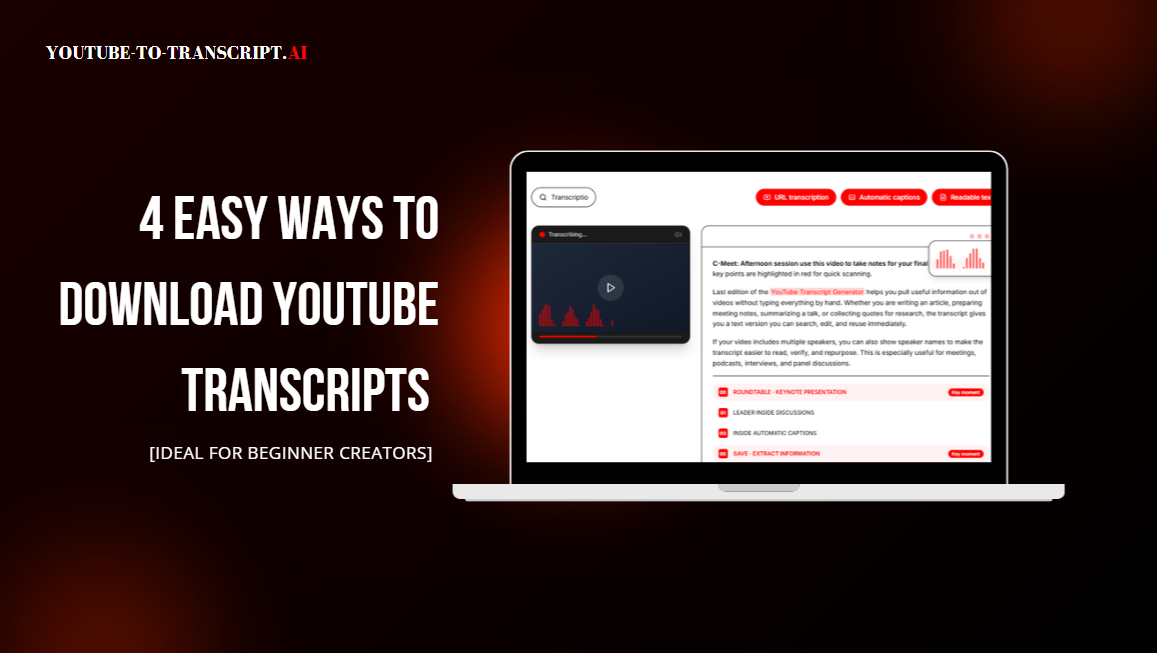
If you just started a YouTube channel — or you want to turn someone else's video into something you can actually read — you've probably hit the same wall: the words are right there in the audio, but there's no obvious "convert transcript" button anywhere on the page.
Good news: there are several ways to convert YouTube transcripts, and most take under a minute. This guide walks through four methods, from the fastest free tool to the built-in option YouTube gives you, plus the one trick that only works if the video is yours. By the end you'll know which method fits your situation, what file format you'll walk away with, and how to dodge the usual beginner mistakes.
Why convert a YouTube transcript at all?
Before the how-to, a quick why. A transcript converts spoken video into text you can search, quote, caption, and repurpose.

Transcription options
- Creators pull transcripts to write show notes, blog posts, and subtitles without retyping a word.
- Students shrink a 60-minute lecture into searchable notes they can skim before an exam.
- Marketers lift exact quotes for social posts and case studies.
- Editors use the transcript as the base layer for SRT or VTT captions.
If any of that sounds like you, the four methods below are worth knowing. Knowing how to convert YouTube transcripts changes how much mileage you get out of every video you watch.
Method 1: Use a free online YouTube transcript converter
The simplest way is an online tool that handles the whole job in your browser. youtube-to-transcript.ai is one of them — you paste a link and get a timestamped transcript without signups or installs. It covers standard videos, Shorts, and most embedded players, and lets you export in whatever format your next step needs.
- Copy the video URL from the address bar. A standard watch link, a Shorts link, or most embedded players all work.
- Paste it into the input box on the YouTube Subtitles Converter page and run it.
- Review the transcript, then export it in the format you need — TXT for plain notes, DOCX for editing, SRT or VTT for captions, and CSV if you want the data in a spreadsheet.
If the video already has captions, the tool uses them. If it doesn't, speech recognition builds the transcript from the audio track, so you're never blocked by a missing subtitle file. When you use a YouTube to transcript tool this way, you also get a clean, timestamped file you can drop straight into an editor.
Method 2: YouTube's built-in transcript panel
YouTube hides a native transcript behind the three-dot menu (...) under the video, then "Show transcript." It opens a side panel with the full text and clickable timestamps.
It's free and needs no extra tool, which makes it fine when you just want to read along. But there are limits:
- You can't export it as a file — you select the text and copy it manually.
- Timestamps don't copy with the text by default.
- Some creators disable transcripts, and auto-generated ones can be rough.
Use this when you only need to read or copy a short section and don't care about a clean file. If your goal is to convert YouTube transcripts as a reusable asset, this method falls short.
Method 3: Browser extensions
Several Chrome extensions add a "convert transcript" button straight onto the YouTube page. They're convenient because the button is right there.
The trade-off is trust and privacy. An extension can see what you watch, and quality varies widely. If you go this route, pick one with a clear privacy policy and a large user base, and skip anything that asks for more permissions than it needs. For occasional use it's fine; for repeat, high-volume work, Method 1 is safer and gives you more export options. Many people who learn to convert YouTube transcripts for the first time start with an extension, then move to a dedicated tool once the volume picks up.
Method 4: YouTube Studio (only for your own videos)
If the video lives on a channel you manage, YouTube Studio lets you convert the subtitle file directly: open the video, go to Subtitles, and convert the .sbv or .srt file.
This is the only method that gives you the platform's own caption file for your content. It won't help with other people's videos, which is why it's last on the list.
Comparison: which method should you use?
| Method | Effort | Cost | Export file | Best for |
|---|---|---|---|---|
| Online tool | Low | Free | TXT / DOCX / SRT / VTT / CSV | Everyone, regular use |
| Built-in panel | Low | Free | None (copy only) | Quick read-along |
| Extensions | Low | Free / paid | Varies | Convenience on-page |
| YouTube Studio | Low | Free | .sbv / .srt | Your own videos |
What exactly is a transcript file?
When you convert YouTube transcripts, the format you pick decides what you can do next:
- TXT — Plain text. Best for notes and quick search.
- DOCX — Word document. Best when you'll keep editing.
- SRT — Subtitle file. The most universal caption format.
- VTT — Web subtitle file. Standard for HTML video players.
- CSV — Spreadsheet. Best when you want timestamp-plus-text as data.
Pick the format that matches the job, not the one that's easiest to click.
From transcript to subtitles: a simple workflow
Once you convert YouTube transcripts, turning them into captions is straightforward. Clean the text, confirm the timestamps line up, then export as SRT or VTT and upload it wherever your video lives. A five-minute cleanup beats typing captions from scratch on a 40-minute video.
Beginner tips for clean transcripts
- Keep the timestamps. They let you jump back to the exact moment a quote was said.
- Know SRT vs VTT. Both are caption formats; SRT is more universal, VTT is web-native.
- Clean the text before publishing. Auto-generated transcripts often miss punctuation — add periods and speaker labels.
- Check the language. If the video isn't English, make sure your tool supports the source language.
Common mistakes to avoid
New creators often grab a transcript and paste it raw. Auto-generated text is rarely punctuation-perfect, so a quick pass fixes readability. Another mistake is picking the wrong format: if you're uploading captions, SRT or VTT is what editors expect, not a plain TXT. Finally, don't assume every video has captions — when they're missing, an online tool that falls back to speech recognition saves the day. The biggest mindset shift is treating the convert as step one, not the finished product.
Real scenarios where a transcript saves hours
The value shows up in specifics. A marketer takes a 45-minute webinar, converts the transcript, and pulls five standalone posts from the best moments — work that used to take a full day. A language learner keeps the transcript open beside the video and studies with dual subtitles, reading along while listening. A support lead turns a product tutorial into a help article by cleaning the transcript and adding headings. In each case the transcript is the lever; without it, the video stays locked inside the player, and the ideas inside it never get reused. The people who get the most from transcripts aren't the ones with the biggest libraries — they're the ones who treat every video as a source document.
A quick note on usage and attribution
Transcripts are derived from someone else's video. If you republish large chunks, credit the creator and respect their license. For your own videos, you're free to use the transcript however you like. This isn't legal advice — just the habit that keeps you safe as you build a transcript workflow.
FAQ
Q: Can I convert transcripts from any YouTube video?
A: You can convert a transcript from most public videos using an online tool or the built-in panel. Videos with captions disabled or strict settings may be limited, and private videos require owner access.
Q: Is there a completely free way?
A: Yes. The built-in transcript panel and free online tools both work without payment for everyday use.
Q: What format should I choose for subtitles?
A: Use SRT or VTT. SRT works in most editors and platforms; VTT is the standard for web video players.
Q: Do I need to install software?
A: No. Online methods run in your browser, so there's nothing to install.
Q: Why do my timestamps look off?
A: Auto-aligned timestamps can drift on long videos. Re-check the key moments you plan to quote, and nudge them if needed before publishing.